Remote Work Tools for Project Management: Streamline Your Workflow
Effective project management is crucial for remote teams. Discover the top remote work tools that help you plan, track, and deliver projects on time.
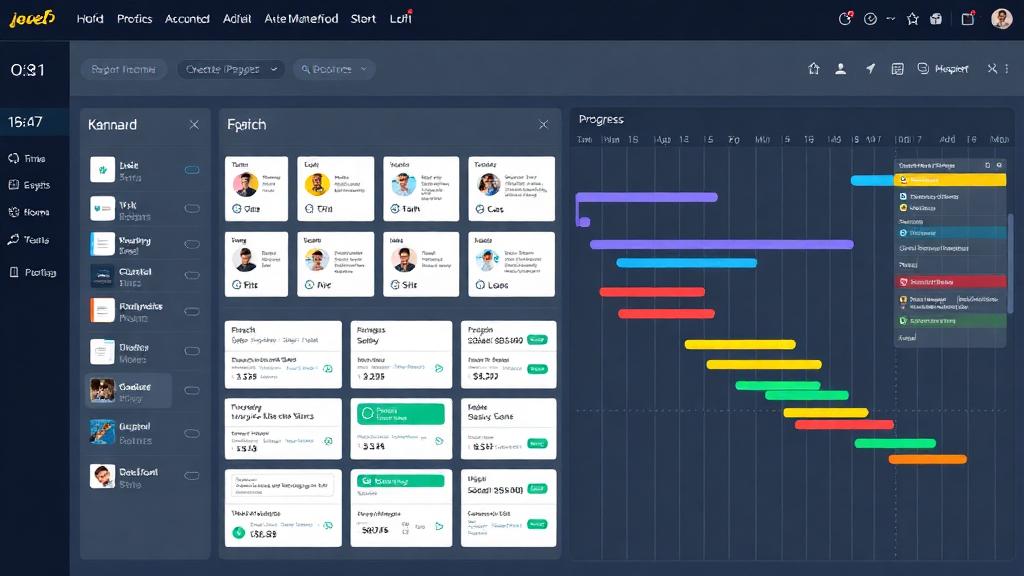
Remote Work Tools for Project Management: Streamline Your Workflow
Last spring, I consulted with a remote marketing team based in New York—six people spread across Brooklyn, Boston, and Montreal—working on a product launch for a London-based client. Their workflow was chaos: deadlines scattered across Excel spreadsheets, feedback buried in Slack threads, and tasks falling through the cracks because no one knew who owned what. “We’re using three different tools, but nothing connects,” their project manager sighed. By the end of the week, we’d swapped their hodgepodge of apps for a focused project management tool—and their launch timeline shrank by 20%.
That’s the magic of the right project management (PM) tool for remote teams: it doesn’t just track tasks—it weaves your workflow into a cohesive, visible system. For remote teams, where face-to-face check-ins don’t happen, PM tools become your shared “office”—the place where everyone knows the plan, the progress, and their role. But with so many options (Asana, Monday.com, ClickUp… the list goes on), how do you pick the one that actually streamlines your work, not complicates it? Let’s break this down with real-world examples from remote teams across欧美, Australia, and Canada—no jargon, just what works.
Core Project Management Tools: Match Your Team’s Style
The best PM tool isn’t the fanciest one—it’s the one that fits how your team works. Whether you’re a small freelance crew or a large cross-functional team, these tools cover the basics and then some.
Asana: For Teams That Love Structure (Without Rigidity)
Asana is a staple for remote teams that need clear task tracking and deadline visibility—think marketing agencies, software development teams, and nonprofits. A London-based content team I worked with uses it to manage their blog calendar: each task (draft, edit, publish) is assigned to a writer or editor, with due dates, attached style guides, and links to Google Docs. The “List View” keeps everyone focused on what’s due next, while the “Calendar View” lets the manager spot bottlenecks at a glance.
The trick for beginners? Use “portfolios” to group related projects (e.g., “Q3 Product Launches”) so you don’t get overwhelmed by a cluttered dashboard. A remote project coordinator in Toronto told me she once had 15 projects in Asana—until she organized them into portfolios. “Now I can see our entire workload in 10 seconds,” she said. “No more scrolling for hours to find what I need.”
Monday.com: For Visual Thinkers (and Collaborative Teams)
If your team hates spreadsheets and loves visual workflows, Monday.com is your jam. Its colorful, customizable boards let you track tasks, deadlines, and progress in a way that feels intuitive—like a digital whiteboard everyone can access. A Sydney-based software team uses it to manage their agile sprints: each board has columns for “To Do,” “In Progress,” “Code Review,” and “Done,” with cards that include user stories, attachments, and team comments.
What makes it stand out for remote teams? The “Updates” section lets you share progress without clogging Slack. A developer in Berlin told me, “Before Monday, I was sending daily Slack updates to my team. Now I just post a quick update on the task card—everyone sees it, and I don’t get distracted by replies mid-work.” Plus, the mobile app is seamless—great for team members working across time zones who need to check in on the go.
ClickUp: For Teams That Want “All-in-One” Simplicity
If you’re tired of juggling a PM tool, a docs app, and a time-tracker, ClickUp is designed to be your one-stop shop. It combines task management, document collaboration, goal tracking, and even time tracking—perfect for small teams or freelancers who don’t want to pay for multiple tools. A freelance project manager in Vancouver uses it to manage all her clients: each client has a “space” with tasks, shared docs, and a time tracker that integrates with her invoicing software.
The key to using ClickUp well? Don’t enable every feature at once. Start with tasks and docs, then add features like goals or time tracking as you need them. “I tried to use every ClickUp feature on day one and got overwhelmed,” a remote designer in Melbourne admitted. “Now I stick to the basics, and it’s been a game-changer for my workflow.”
Pro Tips to Streamline Your Workflow (Beyond the Tool)
A great PM tool is only as good as how you use it. Remote teams that thrive don’t just pick the right tool—they build workflows that make it work for them.
Integrate Your Tools (No More Silos)
The biggest workflow killer? Tools that don’t talk to each other. If your PM tool doesn’t integrate with Slack, Google Workspace, or your invoicing software, you’ll waste hours copying information between apps. Most top PM tools offer integrations—use them.
For example, a Toronto-based e-commerce team uses Asana integrated with Slack and Shopify: when a task is marked “Done” in Asana, it sends a notification to their Slack channel; when a customer places a large order, Shopify automatically creates a task in Asana for their fulfillment team. “We cut down on manual updates by 50%,” their operations manager said. “It’s like having an extra pair of hands.”
Keep Tasks Simple (Avoid Overcomplicating)
Remote teams often fall into the trap of creating “task novels”—tasks with so many details, attachments, and subtasks that no one knows where to start. A good rule of thumb: each task should be clear enough that someone could pick it up and do it without asking questions.
A London-based event team learned this the hard way when they created a single task for “Plan Q4 Virtual Conference” with 20 subtasks. “No one wanted to take it on because it felt overwhelming,” their lead planner said. They split it into smaller tasks (“Book Speaker X,” “Design Registration Page,” “Send Invites”) and assigned them to different team members. Suddenly, progress picked up—and deadlines were met ahead of schedule.
Use Automation to Cut Down on Manual Work
Why waste time doing repetitive tasks (like assigning follow-up tasks or sending deadline reminders) when your PM tool can do it for you? Most tools offer automation features that let you set rules—e.g., “When a task is marked ‘Review,’ assign it to Sarah and send her a Slack reminder.”
A Berlin-based marketing team uses Monday.com automation to handle their social media calendar: when a blog post is marked “Published” in their content board, it automatically creates a task in their social media board to share it on Instagram, Twitter, and LinkedIn. “We used to spend 2 hours a week creating social media tasks,” their social media manager said. “Now it takes 5 minutes—and we never miss a post.”
Common Mistakes to Avoid (I’ve Seen Them All)
When remote teams first adopt a PM tool, they often make avoidable mistakes that slow down their workflow. Here’s what to watch out for:
Don’t Overcustomize (Keep It Simple)
It’s tempting to tweak every setting, add custom fields, and build complex workflows—but resist the urge. A remote team in Melbourne spent two weeks customizing ClickUp to fit their “perfect” workflow, only to find that no one wanted to use it because it was too complicated. “We had custom fields for everything—from ‘Task Priority’ to ‘Client Mood’—and it just became a chore to fill out,” their manager said. They stripped it back to the basics, and adoption skyrocketed.
Don’t Neglect Team Training (Even for “Easy” Tools)
A tool is only useful if your team knows how to use it. I once worked with a Toronto-based team that adopted Asana but never trained their members—so half the team used it for tasks, while the other half kept using Excel. Chaos ensued. “We assumed Asana was intuitive, but some team members had never used a PM tool before,” their lead said. They held a 30-minute training session (with a Q&A!) and created a simple cheat sheet for common tasks. Within a week, everyone was on board.
Don’t Use It as a “Micromanagement Tool”
PM tools are for visibility, not surveillance. A remote team in Sydney made the mistake of tracking every minute of their members’ work—adding “time spent” fields to every task and requiring hourly updates. “It made everyone feel like they were being watched,” one team member said. Morale dropped, and turnover spiked. They shifted to a focus on outcomes (did the task get done well and on time?) rather than activity—and suddenly, the team was happier and more productive.
Wrapping Up: Tools Are Just the Start
At the end of the day, a PM tool won’t fix a broken workflow—it will amplify a good one. The best remote teams don’t rely on tools to do the work for them; they use tools to make their work clearer, more collaborative, and less stressful.
Here’s my final tip: Test before you commit. Most PM tools offer free trials—use them to see if the tool fits your team’s style. A small freelance crew might love ClickUp’s simplicity, while a large cross-functional team might thrive with Asana’s structure. There’s no “one-size-fits-all” solution—only what works for you.
Remember that New York marketing team I mentioned earlier? Six months later, they’re still using Asana—and their client renewed their contract for another year. “We used to spend 3 hours a week in status meetings,” their project manager said. “Now we check Asana once a day, and meetings are 30 minutes max. We’re getting more done, and we’re less stressed.”
That’s the goal, right? To streamline your workflow so you can focus on the work that matters—without the chaos. Whether you’re managing a product launch from London, a content calendar from Toronto, or a software sprint from Sydney, the right PM tool will help your remote team work smarter, not harder.
Next time you’re overwhelmed by your remote workflow, take a step back. Pick a tool that fits your team, keep your processes simple, and let automation do the heavy lifting. You’ve got this—and your workflow (and your sanity) will thank you.
About this guide
We publish practical, experience-led tutorials and tool guides for remote teams.
- Published: January 13, 2026
- Author: Jordan Kim
- Category: Project Management
- Estimated reading time: 9 min read
Our editorial standards and monetization disclosures:
Spotted an issue or have a suggestion? Email [email protected].
How we put this guide together
- We review official documentation and product pages for key claims.
- We focus on practical workflows (setup steps, everyday usage, trade-offs).
- We aim to keep guides current as tools change.
References
Official documentation and reputable resources related to this guide.
- Asana Guidehttps://asana.com/guide
- Asana Academyhttps://academy.asana.com/
- Trello Guidehttps://trello.com/guide
- Atlassian — Agile Project Managementhttps://www.atlassian.com/agile/project-management
- Google Workspacehttps://workspace.google.com/
- Slackhttps://slack.com/
Related Remote Work Tools Guides
View our complete Sitemap for all remote work tools guides.