Remote Work Tools Notion Setup Guide: Build Your Digital Workspace
Notion is a versatile all-in-one workspace for remote teams. Follow our comprehensive setup guide to create a powerful digital workspace for your team.
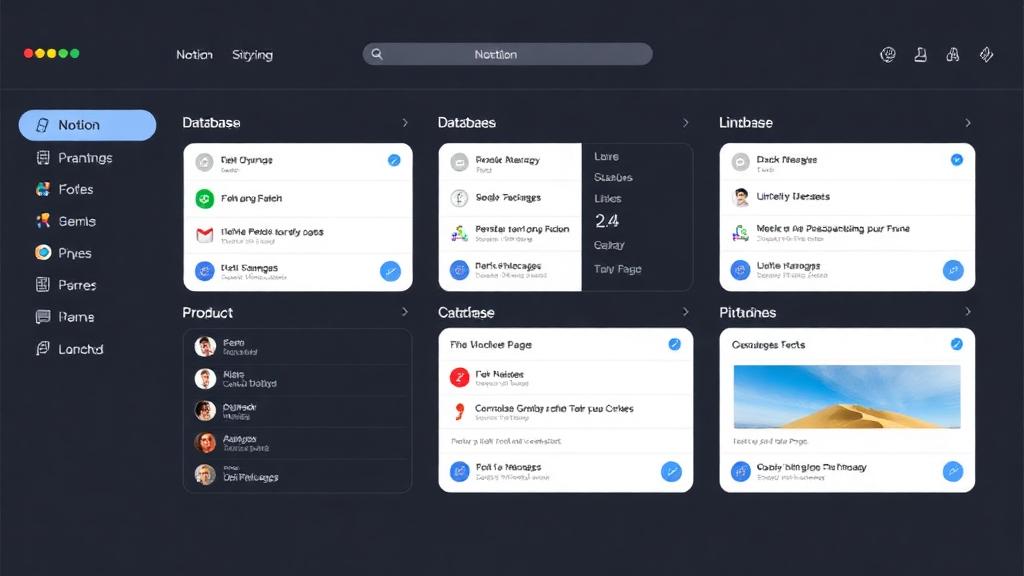
Remote Work Tools Notion Setup Guide: Build Your Digital Workspace
Last summer, I spent a week coaching a remote content team in Lisbon—four writers spread across Porto, Madrid, and Barcelona—struggling to organize their work in Notion. Their workspace was a jumble of unlabeled databases, scattered notes, and duplicate pages; one writer spent 45 minutes daily searching for client briefs buried in random folders. “I thought Notion would fix our chaos,” their lead editor sighed, staring at a cluttered dashboard. “Instead, it’s become another thing to manage.”
That’s the truth about Notion for remote work: it’s not a “set-it-and-forget-it” tool. When done right, it becomes your team’s single source of truth—where tasks, notes, deadlines, and files live in harmony. But mess up the setup, and it turns into a productivity black hole. The good news? You don’t need advanced tech skills to build a streamlined Notion workspace. Let’s break this down with real-world examples from remote workers across Europe, North America, and Australia—no jargon, just step-by-step setup that actually works for remote teams.
Core Notion Setup: Start with the Basics (For Beginners)
Before diving into fancy databases or dashboards, nail these foundational elements. They’ll keep your workspace organized, even as you add more content. Think of this as building the walls of your digital office—simple, sturdy, and functional.
Step 1: Create a Clear Workspace Structure (No More Chaos)
Notion’s biggest strength is flexibility—but that’s also its biggest pitfall. Remote teams often skip structuring their workspace, leading to scattered content. Start with three high-level databases (think of them as your “main folders”) to keep everything organized:
1. Tasks Database: Track What Needs to Get Done
This is your remote team’s to-do list on steroids. A London-based freelance writer uses hers to track client projects, with properties (Notion’s version of columns) for:
- Status: To Do → In Progress → Review → Done (color-coded for quick scanning)
- Client: Dropdown menu with all her clients (e.g., “New York Tech Startup,” “Sydney Marketing Agency”)
- Due Date: Calendar picker (she uses the “Calendar View” to see weekly deadlines at a glance)
- Priority: Low/Medium/High (she highlights high-priority tasks in red)
“The Tasks database keeps me from dropping balls,” she said. “I used to rely on sticky notes and Google Calendar, but now everything’s in one place—no more ‘Did I forget that deadline?’ panics.”
Pro tip: Add a “Link to Page” property to attach relevant client briefs or draft documents—so you never have to search for files mid-task.
2. Notes Database: Store Ideas, Meeting Notes, and Resources
Remote work means lots of information to retain—client feedback, brainstorming ideas, team meeting notes. A Berlin-based remote project manager uses her Notes database to store everything, with properties for:
- Type: Meeting Notes → Client Feedback → Brainstorm → Resource (e.g., “SEO Guide”)
- Related Project: Link to the corresponding task in her Tasks database
- Date Created: Auto-generated (so she can sort by recent notes)
- Tags: Keywords like “Q4 Launch,” “Client X,” “Content Strategy” (for easy searching)
She also uses Notion’s “Template Button” to create a pre-formatted meeting notes page—with sections for agenda, action items, and key takeaways. “I used to waste 10 minutes setting up meeting notes,” she said. “Now I click the template, and it’s ready to go—focused on the conversation, not the formatting.”
3. Projects Database: Oversee Big-Picture Work
For larger remote projects (e.g., a product launch, a client campaign), a Projects database helps you track progress without getting lost in details. A Toronto-based marketing team uses theirs to manage client campaigns, with properties for:
- Client: Dropdown menu (e.g., “Toronto E-Commerce Brand”)
- Timeline: Start/End dates (visualized with a “Gantt View”)
- Team Lead: Person responsible for the project
- Status: Planning → Execution → Review → Completed
- Budget: Number field (for tracking project costs)
“The Gantt View is a game-changer for remote teams,” their project manager said. “We can see the entire campaign timeline at a glance—no more ‘Where are we on the landing page design?’ emails. Everyone knows the plan.”
Step 2: Build a Personal Dashboard (Your Remote “Desk”)
Your dashboard is the first page you open in Notion—it should give you a snapshot of your day, week, and ongoing projects. A Sydney-based remote designer uses hers to stay focused, with these sections:
- Today’s Tasks: Filtered view of her Tasks database (only tasks due today)
- Weekly Overview: Calendar view of upcoming deadlines
- In Progress Projects: Card view of projects she’s leading
- Quick Notes: A blank toggle list for jotting down ideas (she calls it her “digital scratchpad”)
- Resources: Links to frequently used tools (Figma, Slack, Google Drive)
“I used to open 10 tabs before starting work,” she said. “Now I open Notion, and my dashboard has everything I need—no more searching for links or deadlines. It’s like having a personalized desk that’s always organized.”
Pro tip: Keep your dashboard simple—don’t add every possible view. Stick to what you check daily. A cluttered dashboard defeats the purpose!
Team Collaboration Setup: Turn Notion into Your Virtual Office
For remote teams, Notion isn’t just a personal tool—it’s where you collaborate, share updates, and stay aligned. These setups will make your team feel like they’re working from the same room, even when they’re miles apart.
Shared Team Dashboard: Keep Everyone on the Same Page
A shared dashboard is your team’s “virtual break room”—where everyone can see ongoing projects, upcoming deadlines, and key updates. A London-based PR team uses theirs with these sections:
- Team Tasks: Filtered view of the Tasks database (all tasks assigned to team members)
- Project Status: Board view of the Projects database (sorted by status: Planning → Execution → Done)
- Weekly Wins: A toggle list where team members add small victories (e.g., “Client loved the press release!”)
- Upcoming Meetings: Calendar view of team meetings and client calls
- Announcements: A callout block for important updates (e.g., “Deadline for Client Y moved to Friday”)
“The shared dashboard eliminates ‘information silos,’” their account manager said. “Before, we’d rely on Slack threads to share updates—now everyone checks the dashboard first. No more ‘I didn’t know that deadline changed’ excuses.”
Client Portal: Streamline Client Collaboration
If you work with clients remotely, a Notion client portal keeps feedback, deliverables, and updates in one place—no more scattered emails or Slack messages. A Vancouver-based freelance web developer uses his to collaborate with clients, with these pages:
- Project Brief: Static page with project goals, timeline, and requirements
- Deliverables: Database of files (e.g., “Homepage Design V1,” “Website Wireframe”) with client feedback
- Feedback Log: Toggle list where clients add comments (he replies directly in the same block)
- Invoice History: Table of past invoices (linked to PDF files in Google Drive)
“Clients love the portal because it’s simple—no need to create a Notion account, just a view-only link,” he said. “Before, I’d spend hours compiling feedback from emails; now it’s all in one place. Client satisfaction went up 30% because of it.”
Pro tip: Use Notion’s “Share” settings to limit client access—give them “Comment Only” permissions so they can’t edit your work, just add feedback.
Team Wiki: Document Processes (No More “How Do We Do This?”)
Remote teams lose time answering the same questions: “How do we submit expenses?” “What’s the client feedback process?” A team wiki in Notion documents these processes, so everyone has access to answers 24/7. A Berlin-based startup uses theirs to store:
- Onboarding Guides: For new remote team members (e.g., “How to Set Up Your Slack Profile,” “Notion Workspace Tour”)
- Process Documents: Step-by-step guides for recurring tasks (e.g., “Client Onboarding Checklist,” “Content Approval Workflow”)
- Resource Library: Links to tools, templates, and tutorials (e.g., “Figma Design Guidelines,” “SEO Best Practices”)
- Team Directory: Table of team members with their roles, time zones, and Slack handles
“The wiki has cut down on onboarding time by 50%,” their HR manager said. “New hires used to ask 10 questions a day; now they check the wiki first. It’s like having a team manual that’s always up-to-date.”
Advanced Notion Hacks: Automate and Customize (For Power Users)
Once you’ve mastered the basics, these hacks will take your Notion setup to the next level—saving you time and making your workspace even more functional.
Integrate Notion with Your Favorite Tools (No More Switching Apps)
Notion plays well with most remote work tools—use integrations to eliminate manual updates. A Toronto-based e-commerce team integrates Notion with:
- Slack: When a task is marked “Done” in Notion, it sends a notification to their Slack channel (so everyone knows progress)
- Google Calendar: Notion deadlines sync to Google Calendar (no more double-entry)
- Shopify: When a customer places a large order, Shopify automatically creates a task in Notion for their fulfillment team
“We used to spend 2 hours a day copying information between apps,” their operations manager said. “Integrations cut that time to 10 minutes—like having an extra pair of hands.”
Use Automation to Cut Down on Repetitive Work
Notion’s “Database Automations” (available on paid plans) let you automate repetitive tasks—so you can focus on important work, not busywork. A Melbourne-based content team uses these automations:
- When a task is marked “Review,” assign it to the editor and send a Slack reminder
- When a project is marked “Completed,” move it to the “Archived Projects” database
- When a new client is added to the Clients database, create a pre-formatted project page
“Automations eliminated so much manual work,” their content lead said. “We used to spend an hour a day assigning tasks and archiving projects; now Notion does it for us. It’s a game-changer for remote teams short on time.”
Customize with Templates (Save Time on Setup)
You don’t need to build everything from scratch—use Notion’s built-in templates or third-party ones to speed up setup. A London-based freelance marketer uses these templates:
- Content Calendar: Pre-formatted database for planning blog posts, social media, and emails
- Client Onboarding: Step-by-step checklist for welcoming new clients
- Weekly Review: Template for reflecting on weekly progress and setting goals
“Templates saved me 10+ hours of setup time,” she said. “I just customize them to fit my workflow—no more starting from a blank page. It’s like having a ready-made workspace.”
Pro tip: Check out Notion’s Template Gallery (free) or third-party sites like Notion VIP for niche templates (e.g., “Freelance Invoice Tracker,” “Remote Team Retreat Planner”).
Common Notion Mistakes to Avoid (I’ve Seen Them All)
Even the best remote teams mess up their Notion setup—here’s what to watch out for:
Don’t Overcustomize (Keep It Simple!)
It’s tempting to add custom fields, views, and widgets to every page—but too much complexity leads to burnout. A Sydney-based design team spent two weeks customizing their Notion workspace, only to find no one used it because it was too confusing. “We had custom fields for everything—from ‘Task Priority’ to ‘Client Mood’—and it became a chore to fill out,” their manager said. They stripped it back to the basics, and adoption skyrocketed.
Don’t Neglect Permissions (Avoid Data Leaks)
Remote teams often forget to set proper permissions—leading to accidental edits or data leaks. A Berlin-based startup learned this the hard way when a client accidentally edited a project brief (they’d given them “Edit” instead of “Comment” permissions). “We now double-check permissions for every shared page,” their security lead said. “It’s a small step, but it prevents big headaches.”
Don’t Use Notion for Everything (Know Its Limits)
Notion is powerful, but it’s not perfect. Don’t use it for:
- Real-time collaboration: Stick to Google Docs for drafting documents with teammates (Notion’s real-time editing is clunky)
- Video calls: Use Zoom or Google Meet for meetings (Notion’s built-in calls are basic)
- File storage: Store large files (e.g., design mockups, videos) in Google Drive or Dropbox—link to them in Notion instead of uploading directly (it slows down your workspace)
Wrapping Up: Notion Is What You Make of It
At the end of the day, Notion isn’t a magic solution—it’s a tool that amplifies your remote workflow. The best setups are simple, aligned with how your team works, and built to evolve (as your team grows, so can your workspace).
Here’s my final tip: Start small. Don’t try to build a perfect workspace in one day. Pick the Tasks, Notes, and Projects databases first, master them, then add more elements (like a team dashboard or wiki) as you need them. And don’t be afraid to tweak—remote work is flexible, and your Notion setup should be too.
Remember that Lisbon content team I mentioned earlier? A month later, they’d streamlined their workspace to the three core databases and a shared dashboard. “We’re getting more done in less time,” their lead editor said. “Notion used to be a chaos magnet; now it’s our most reliable tool. It feels like we’re all in the same room, even when we’re in different countries.”
That’s the magic of a great Notion setup: it turns a scattered remote team into a cohesive unit—one organized page at a time. Whether you’re a freelance writer in London, a design team in Toronto, or a startup in Sydney, Notion can be your digital workspace—if you set it up right.
Next time you’re overwhelmed by your Notion chaos, take a breath. Simplify, focus on what works, and let Notion do the heavy lifting. You’ve got this—and your remote workflow will thank you.
About this guide
We publish practical, experience-led tutorials and tool guides for remote teams.
- Published: January 5, 2026
- Author: Riley Chen
- Category: Tool Guides
- Estimated reading time: 12 min read
Our editorial standards and monetization disclosures:
Spotted an issue or have a suggestion? Email [email protected].
How we put this guide together
- We review official documentation and product pages for key claims.
- We focus on practical workflows (setup steps, everyday usage, trade-offs).
- We aim to keep guides current as tools change.
References
Official documentation and reputable resources related to this guide.
- Notion Help Centerhttps://www.notion.so/help
- Notion Templateshttps://www.notion.so/templates
- Notion Security & Privacyhttps://www.notion.so/security
- Google Workspacehttps://workspace.google.com/
- Slackhttps://slack.com/
- Zoom Meetingshttps://zoom.us/meetings
Related Remote Work Tools Guides
View our complete Sitemap for all remote work tools guides.