Remote Work Tools Zoom Tips for Beginners: Master Virtual Meetings
New to Zoom? This beginner's guide covers everything you need to know to run professional virtual meetings and make a great impression.
Remote Work Tools Zoom Tips for Beginners: Master Virtual Meetings
Not long ago, I had a conversation with a friend who had just started working remotely. She was thrilled about the idea of being able to work from home, but there was one thing she struggled with—virtual meetings. She wasn’t sure how to manage Zoom calls effectively, and often found herself fumbling with settings, struggling to keep participants engaged, and occasionally missing key moments during discussions. It got me thinking about how many remote workers, especially beginners, are still navigating the intricacies of Zoom.
Zoom has become the go-to tool for remote meetings, both for work and social interactions. It’s easy to use, but mastering it takes a little more than just knowing how to click the “Join Meeting” button. Whether you’re new to virtual meetings or you’re simply looking for ways to improve your Zoom game, here are some tips to help you master this essential remote work tool.
1. Set Up Your Zoom Account and Preferences
Before you even think about starting your first meeting, it’s important to ensure your Zoom account is properly set up. First, download the Zoom app from the official website, create an account (you can sign in with your Google or Facebook account for convenience), and take a moment to customize your preferences.
What many beginners overlook is that Zoom allows you to configure settings for your meetings in advance, so you’re not caught scrambling when it’s time to start. Here are some things to consider:
- Personalize your profile: Upload a professional photo and add a clear display name, especially for work meetings. A clear name can help avoid awkward “Who’s speaking?” moments.
- Set up your audio and video: Test your microphone and camera before the meeting to make sure you’re heard and seen clearly. Zoom offers a “Test Speaker and Microphone” option in the settings—use it!
- Set default settings: You can set your meetings to always start with your microphone muted and your video off, which is useful if you want to avoid distractions as you join a meeting.
2. Mastering the Basics of Joining and Hosting a Meeting
One of the most common Zoom questions I hear is: "How do I join a meeting?" Fortunately, it’s simple. When you receive an invitation, it will include a link to the meeting. Click it, and you’ll be taken to the Zoom app or website, where you can join the meeting with one click. If you’re hosting a meeting, here’s what to keep in mind:
- Schedule in advance: You can schedule meetings ahead of time and send invites directly from Zoom, or use your calendar application to send a link.
- Start the meeting on time: Punctuality is important. Make sure you start the meeting promptly, especially if it's a client call or a scheduled team meeting.
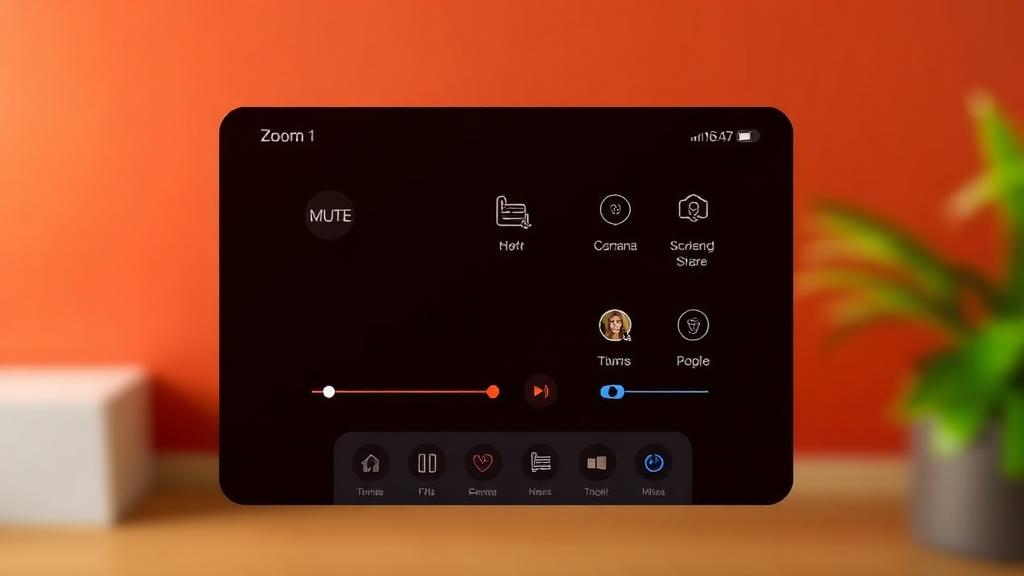
When you first enter the meeting, you’ll see the controls at the bottom of the Zoom window. Familiarize yourself with:
- Mute/Unmute: Tap the microphone icon to mute yourself, and tap again to unmute when you want to speak.
- Stop/Start Video: This allows you to toggle your camera on and off. If you’re not speaking, it’s a good practice to turn your video off to save bandwidth.
3. Zoom Tips for Smooth Communication During Meetings
Once you’re in the meeting, the goal is to communicate clearly and avoid distractions. Here are a few tips to ensure everything runs smoothly:
- Mute when you’re not speaking: Background noise can be a major distraction, especially in a virtual setting. Make sure your mic is muted when you're not talking, especially if you have a lot of background noise around you.
- Use the "Raise Hand" Feature: If you’re in a large meeting, instead of interrupting someone, use the “Raise Hand” feature to indicate you’d like to speak. This is especially helpful during team calls or when you’re in a more formal meeting setting.
- Use Chat for Quick Notes: If you need to share a link or a quick note during the meeting, use the chat function. Avoid typing during someone else’s speaking time to avoid being distracting.
- Engage with Non-Verbal Feedback: Zoom has reaction buttons (thumbs up, clap, etc.) to show you’re engaged without interrupting the flow. Use them to stay active during long calls.
4. Manage Breakout Rooms for Smaller Discussions
One of the standout features of Zoom is its breakout rooms, which allow you to split participants into smaller groups for discussions or tasks. For team leaders or those hosting workshops, this is an excellent way to encourage collaboration. Here’s how to use it:
- Set up breakout rooms in advance: If you’re the host, you can assign participants to specific rooms or let Zoom do it automatically. Make sure to give clear instructions to everyone on when to return to the main room.
- Move between rooms: As a host, you can move between breakout rooms to check in on smaller groups, ensuring everything is on track.
- Use the “Broadcast” feature: You can send a message to all breakout rooms, useful for reminding everyone about the main session’s agenda or time remaining.
Breakout rooms are great for team-building activities, brainstorming sessions, or project planning meetings, where participants need time to focus in smaller groups.
5. Screen Sharing and Collaboration Tools
A key feature of Zoom is screen sharing, which allows you to display content on your screen for others to see. This is invaluable for remote teams, particularly when presenting reports, designs, or even sharing documents.
- How to share your screen: Tap the “Share Screen” button, then select the window or application you’d like to share. You can share your entire desktop or just a specific app. If you’re giving a presentation, choose the “Share Computer Sound” option so others can hear audio from your computer.
- Collaborative Whiteboard: Zoom also offers a whiteboard feature where you can draw and write as a group during meetings. This is useful for brainstorming, problem-solving, or even explaining complex concepts visually.
6. Zoom Security Features for Privacy and Control
When working remotely, security and privacy are essential. Zoom offers several features that can help protect your meetings:
- Require a password for meetings: This ensures only invited guests can join your meeting.
- Use the “Waiting Room” feature: This allows you to control when participants can join the meeting and ensure only authorized people can enter.
- Lock the meeting: Once all participants have joined, you can lock the meeting to prevent anyone else from entering.
- Enable video and audio controls: As a host, you can mute participants if needed or turn off their video to keep distractions to a minimum.
7. Record Your Meetings for Future Reference
Zoom allows you to record your meetings, which is incredibly useful for capturing important discussions, key decisions, or simply for reference. When recording, remember to:
- Get permission: Always ask for permission from the participants before starting the recording. Some regions have legal requirements about recording meetings.
- Access your recordings: Once the meeting is over, Zoom will send you a link to access the recording. You can share this link with participants or use it for review.
Conclusion
Mastering Zoom is essential for anyone working remotely, whether you're hosting meetings, collaborating with teams, or connecting with clients. While it may seem intimidating at first, these tips will help you feel more comfortable using Zoom for your virtual meetings. By ensuring smooth communication, using breakout rooms for focused discussions, and leveraging screen sharing and security features, you can transform your remote meetings into productive, professional interactions.
With just a bit of practice, you’ll be running meetings like a pro—making virtual collaboration feel as seamless as if everyone were in the same room.
About this guide
We publish practical, experience-led tutorials and tool guides for remote teams.
- Published: December 30, 2025
- Author: Riley Chen
- Category: Tool Guides
- Estimated reading time: 8 min read
Our editorial standards and monetization disclosures:
Spotted an issue or have a suggestion? Email [email protected].
How we put this guide together
- We review official documentation and product pages for key claims.
- We focus on practical workflows (setup steps, everyday usage, trade-offs).
- We aim to keep guides current as tools change.
References
Official documentation and reputable resources related to this guide.
- Zoom Support Centerhttps://support.zoom.com/hc/en
- Zoom Security (Overview)https://explore.zoom.us/en/trust/
- Zoom Download Centerhttps://zoom.us/download
- Google Workspacehttps://workspace.google.com/
- Slackhttps://slack.com/
- Zoom Meetingshttps://zoom.us/meetings
Related Remote Work Tools Guides
View our complete Sitemap for all remote work tools guides.